You likely spend nearly 23 hours a week in meetings, leaving almost zero time for the actual work you were hired to do. That statistic isn’t just a number; it is the reality of feeling constantly behind because your day is sliced up by 30-minute interruptions that drain your energy and focus.
Most of us treat our calendar like a digital junk drawer where we toss invites and hope for the best, but this passive approach is exactly why you feel overwhelmed and scattered by Wednesday afternoon.
The good news is that your calendar has powerful, hidden features that can act like a personal assistant to defend your time automatically if you just toggle the right settings.
1. Focus Mode
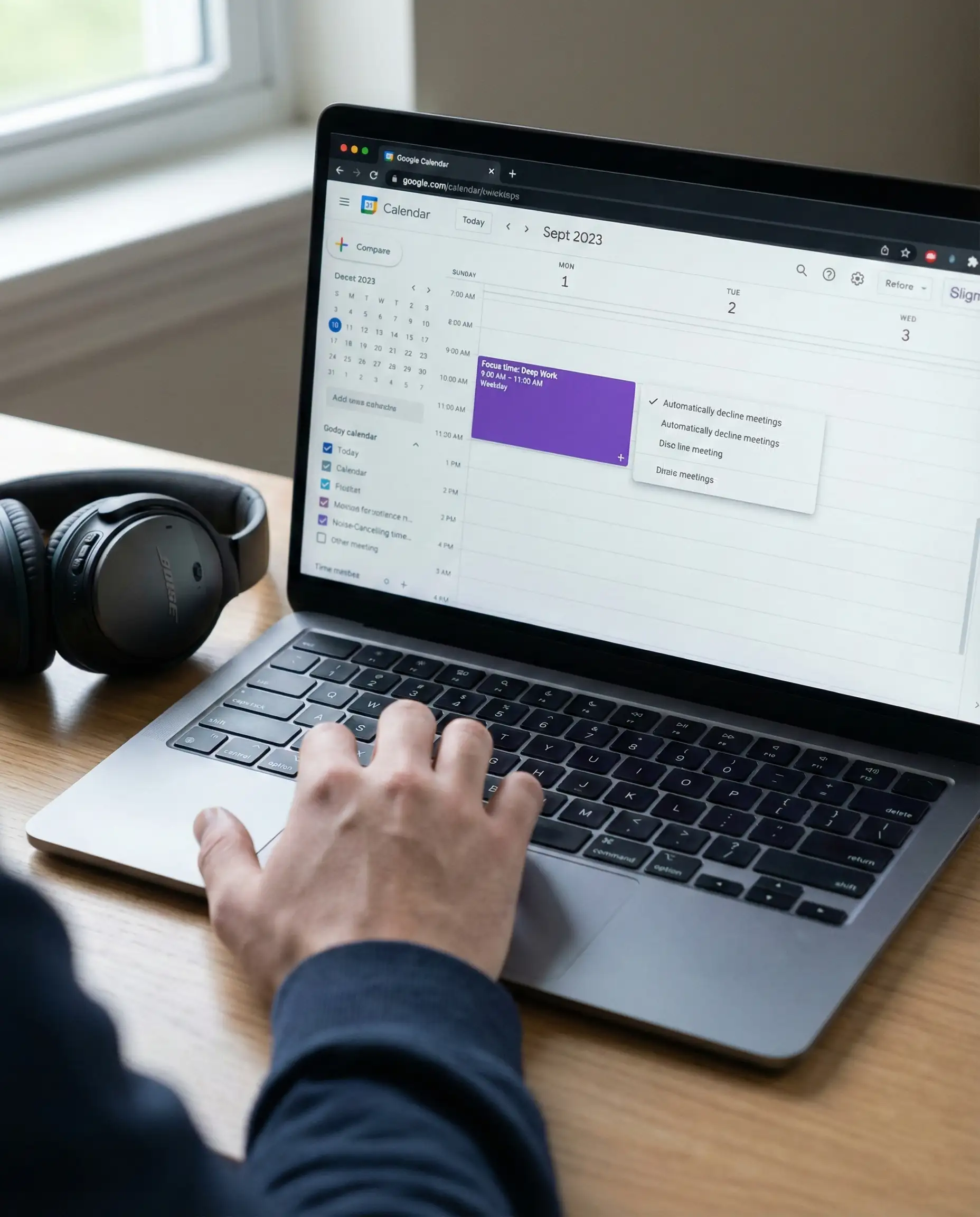
We have all experienced the frustration of trying to finish a complex project while getting interrupted every hour for a “quick sync.” Research shows it takes over 20 minutes to refocus your brain after a distraction, which means a fragmented schedule destroys your ability to do deep thinking.
Google Calendar solves this with a specific feature that is different from a standard event entry. It allows you to block out time specifically for heads-down work and gives you the power to automatically reject incoming interruptions so you don’t have to be the bad guy.
2. Booking Page
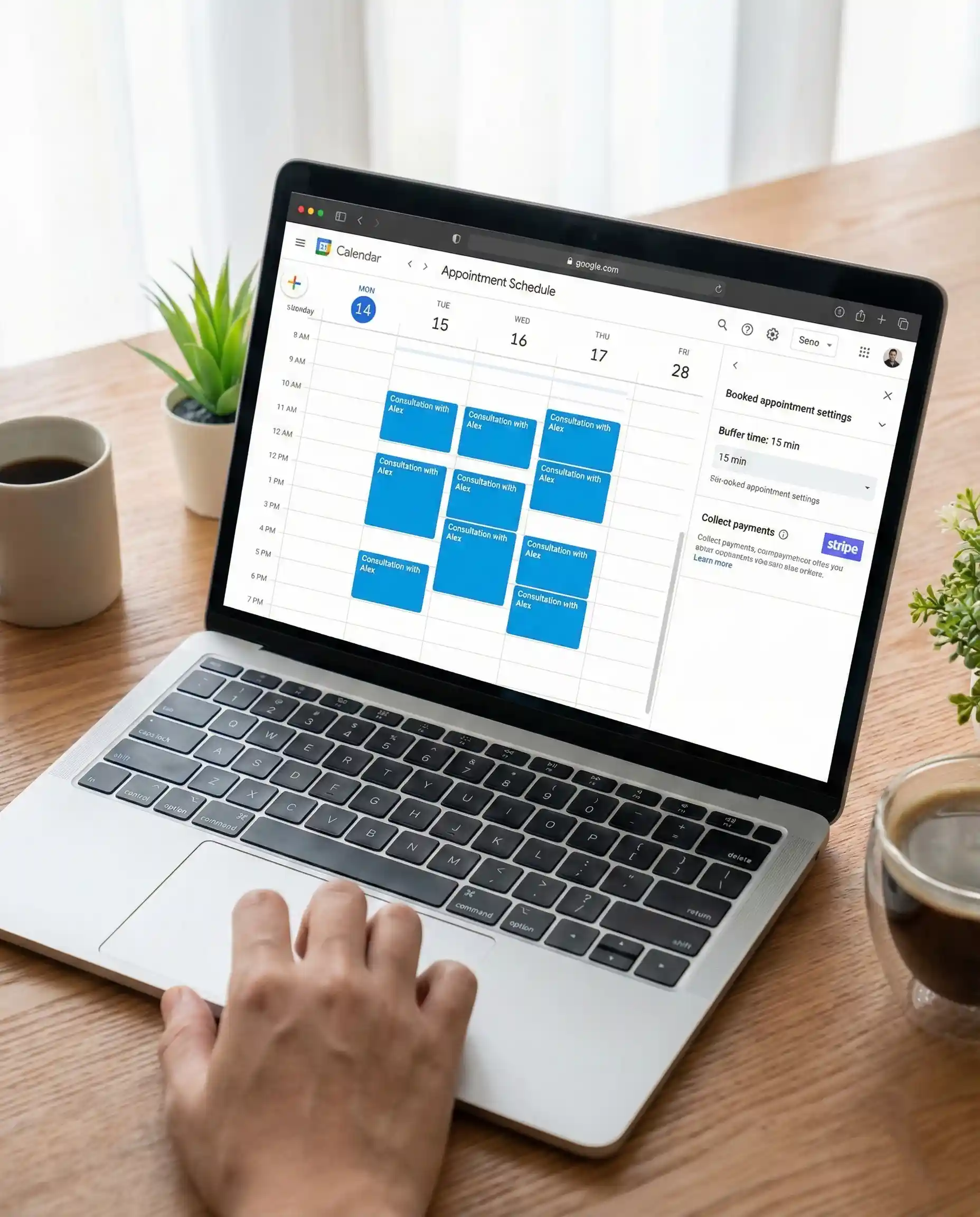
There is nothing more tedious than sending five different emails just to find a 15-minute slot that works for two people. You shouldn’t have to waste your morning playing email tag or checking your schedule repeatedly to see if you are free.
Google has built a native booking system that rivals paid tools like Calendly, allowing you to create a professional booking page where people can grab a slot that fits your pre-set rules. This feature puts you back in control of your availability and presents a professional image to clients or colleagues.
- Create a booking page with specific durations and available hours.
- Set a buffer time between calls so you never have back-to-back meetings.
- Share a single link with anyone who needs to meet with you.
- Connect Stripe if you need to collect payments for your consulting time.
3. Smart Tools
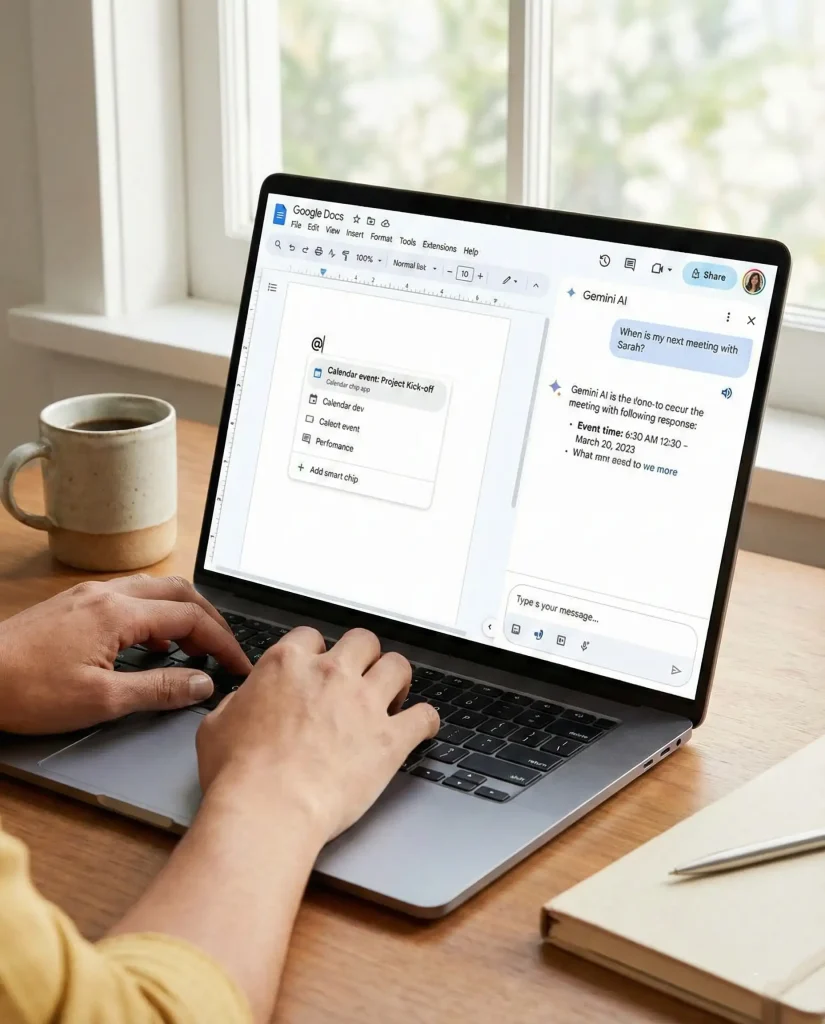
Searching for information inside your calendar used to mean endless clicking through past weeks to remember when you last met a client. That old way of retrieving data is slow and inefficient for a modern workflow.
If you have a Workspace account, you can now use built-in AI tools to treat your calendar like a search engine that understands natural language. You can also connect your meeting events directly to your documents so you don’t have to switch tabs constantly during a busy workday.
4. Short Meetings
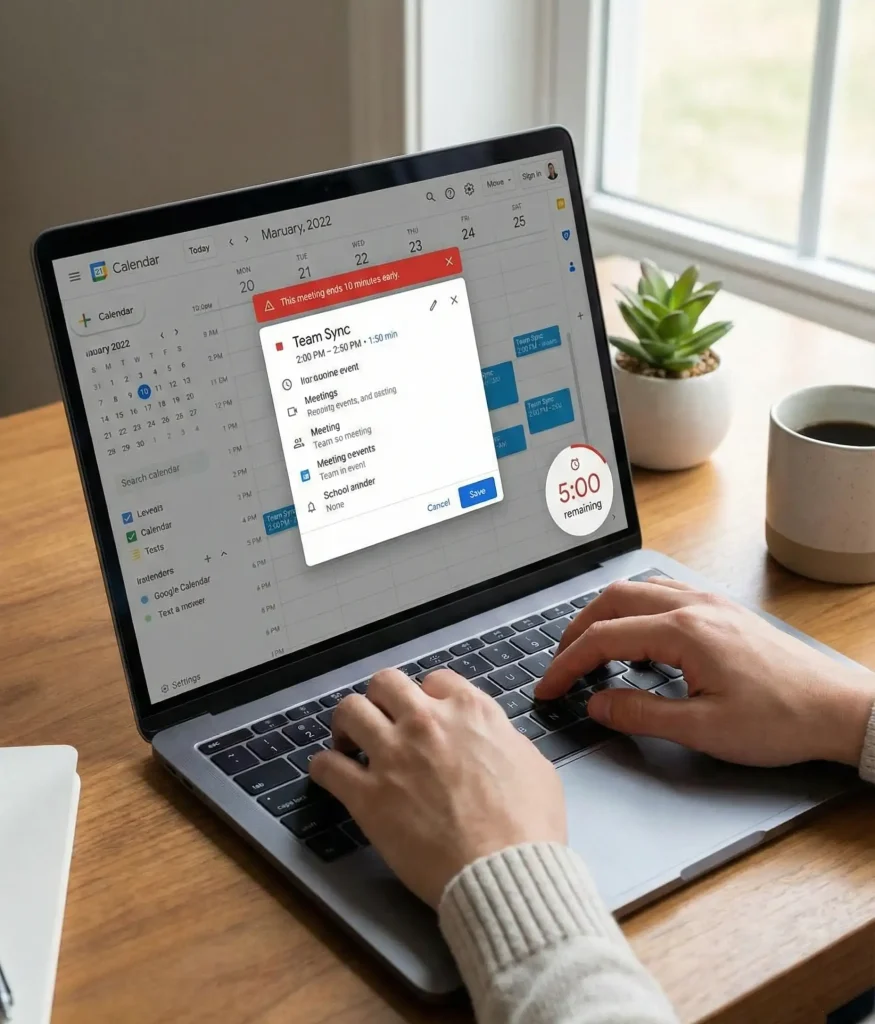
Back-to-back video calls are a major source of stress because they leave you no time to stand up, get water, or reset your brain. When one meeting runs late, it creates a domino effect that ruins your entire afternoon schedule.
You can fix this by changing your default settings to automatically end every meeting early, giving you a mandatory break. This simple change creates a “50-minute hour” culture that respects everyone’s time and prevents that exhausted feeling at the end of the day.
- Go to settings and look for the Event settings section.
- Check the Speedy meetings box to shorten default durations.
- Automatically turn 30-minute calls into 25 minutes.
- Use the 5-minute gap for bio-breaks or to prep for the next call.
5. Color Labels
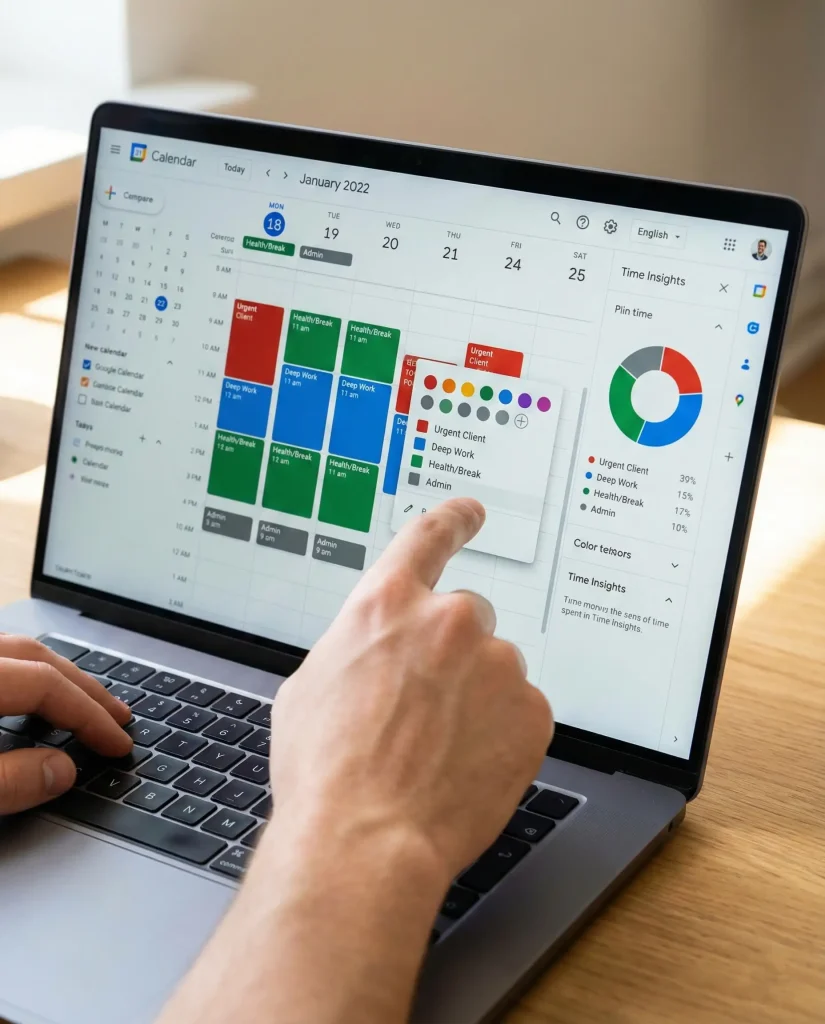
If your calendar is just a solid wall of one color, you cannot glance at your week and know if you are balanced or overloaded. Many people use colors randomly, but that prevents you from understanding where your time actually goes.
By assigning a specific logic to your color palette, you turn your schedule into a data visualization tool. This helps you instantly see if you are spending too much time on low-value admin work and not enough time on strategic projects or personal health.
- Assign Red for urgent external client calls.
- Use Blue for deep work and project execution.
- Mark Health, breaks, and lunch with Green.
- Review the Time Insights panel to see a breakdown of your time usage.
6. Daily Tasks
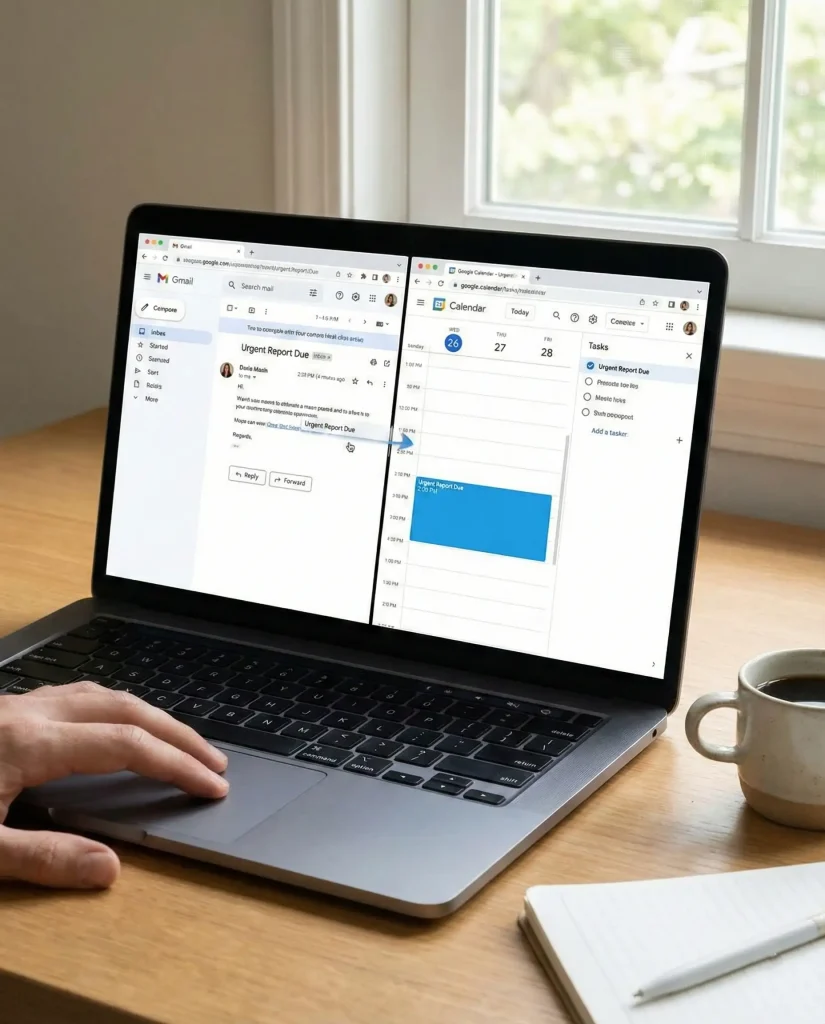
Switching back and forth between a to-do list app and your calendar is a recipe for missing deadlines. You might see a free hour on your schedule and think you are available, forgetting that you have three urgent tasks due that day.
The best way to manage your workload is to view your tasks and your time in one single place. Google allows you to drag emails and tasks directly onto the calendar grid so you can allocate specific time slots to get the work done.
- Drag emails from Gmail to the Tasks sidebar to create to-dos.
- Assign a specific date and time to every task.
- View your tasks alongside your meetings on the main calendar grid.
- Check off items directly from the calendar view when completed.
7. Meeting Notes
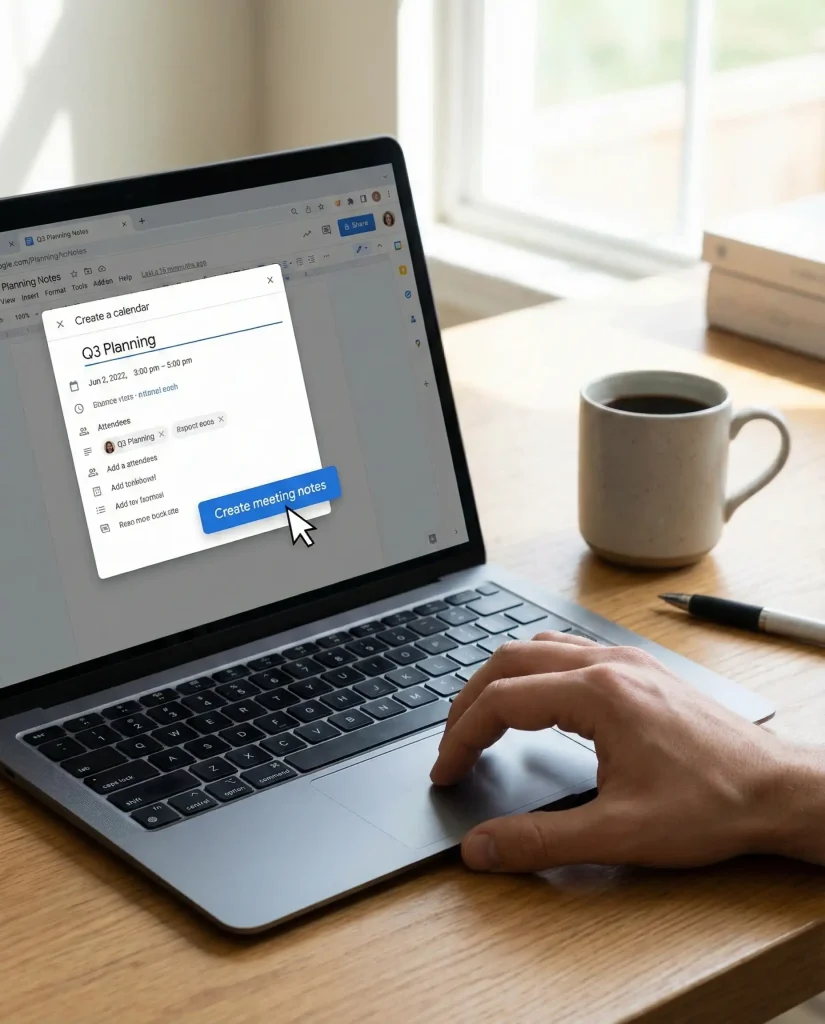
We have all started a meeting awkwardly by wasting the first few minutes asking if anyone has the agenda or the shared document. It is inefficient to manually create a document, change the sharing permissions, and email it to everyone before every call.
You can automate this entire administrative headache with a single click inside the calendar invite. This ensures that when the meeting starts, everyone already has access to the notes and is ready to collaborate immediately.
- Click the Create meeting notes button inside any calendar event.
- Automatically attach a new Google Doc to the invite.
- Grant access permissions to all attendees instantly without manual work.
- Populate the doc with attendee names and action items automatically.
8. Work Location

In a hybrid work environment, confusion often arises about whether you are working from home or coming into the office. It is also common to accidentally book a meeting with a colleague in a different time zone after they have already signed off for the day.
You can eliminate these logistical questions by setting your working location and enabling secondary time zones. This provides clarity to your team and prevents scheduling conflicts before they happen.
- Set your specific work location (Home or Office) for each day of the week.
- Enable a secondary time zone to see your remote team’s hours on the sidebar.
- Adjust your working hours so people cannot book you when you are offline.
- Reduce friction by letting the calendar communicate your logistics for you.
9. Keyboard Shortcuts
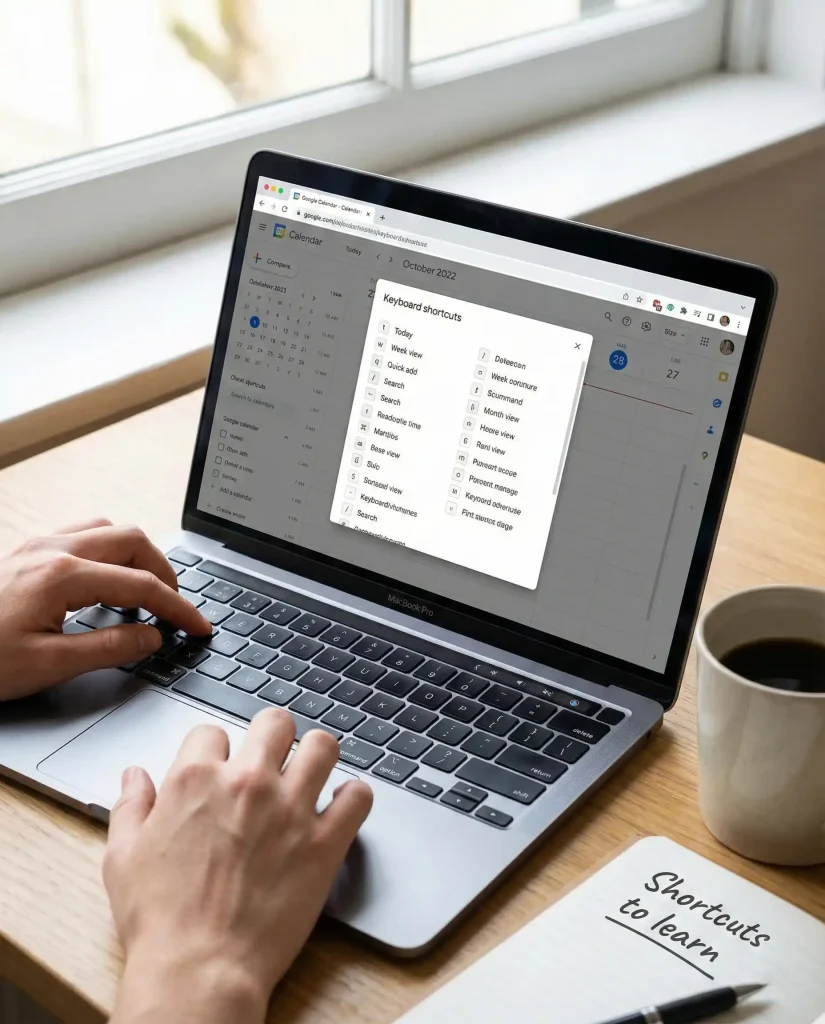
Clicking through dates and weeks with your mouse is surprisingly slow when you are trying to reorganize a busy schedule. If you want to move at the speed of thought, you need to stop mousing and start using the keyboard.
Learning just a few key commands can save you seconds every time you touch your calendar, which adds up to hours over the course of a year. It allows you to jump between views and add events without breaking your flow.



No Comments