How to Set Up an Ergonomic Workstation That Fits Your Body
Learn how to build an ergonomic workstation with the right chair, desk height, keyboard, mouse, monitor position, and lighting to prevent aches and work comfortably.
Years of slouching at a desk have caught up with me. A stiff chair, a desk too tall for my frame, and a cramped laptop keyboard have left me with aches in my neck, shoulders, back, and beyond. Ergonomics experts explained that a workstation holding your body in a neutral position can lower the risk of this kind of pain.
Neutral means your neck stays straight rather than bent back or down. Your arms stay close to your sides, not raised or flared out. Your wrists and hands stay level instead of tilted up or sideways, and your spine stays untwisted. A setup like this lets you sit comfortably at a computer for long stretches, though you should still stand and move around every hour.
The steps below cover how to build a workspace that fits and supports you. They draw on advice from ergonomics specialists and on years of testing home-office furniture and gear.
1. A Chair That Supports Your Spine
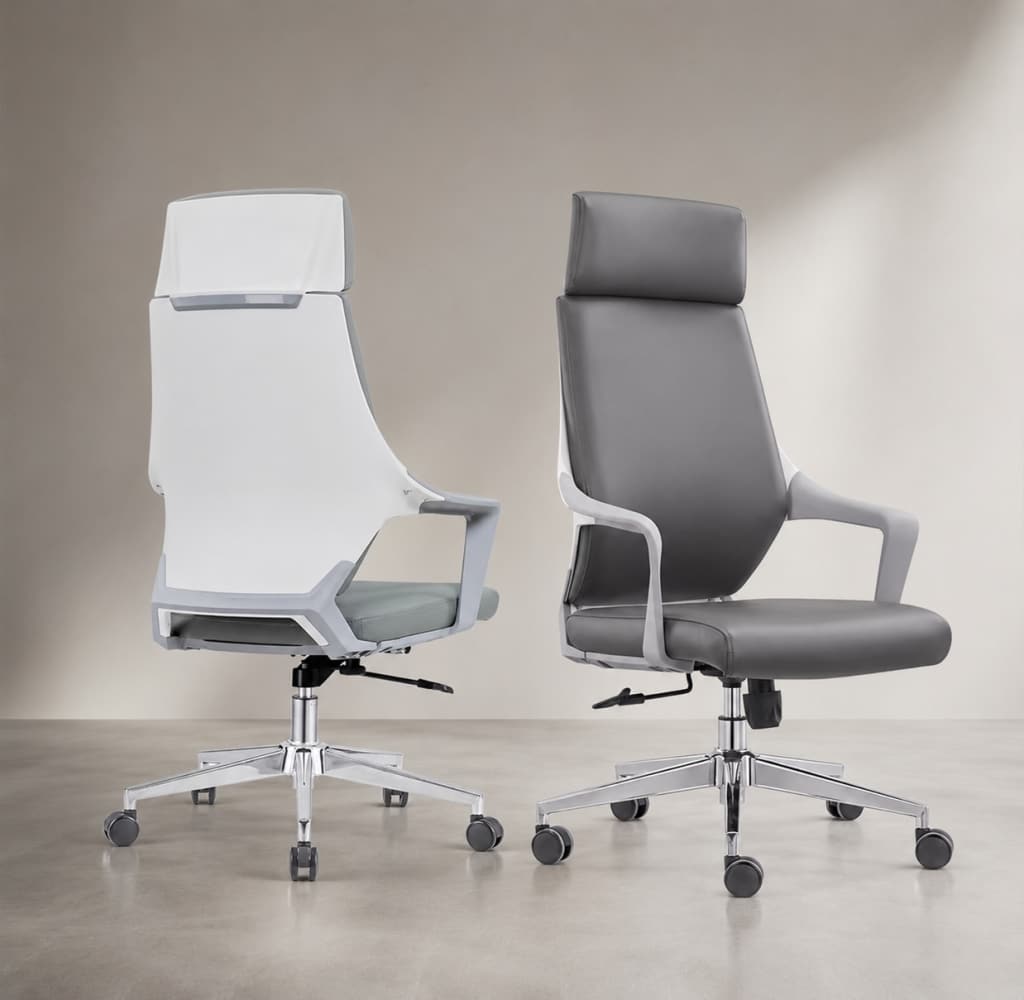
Sit down and press your back against the backrest. Check whether your lower and middle back feel supported or whether gaps open between your spine and the chair. A good chair follows the natural S-shaped curve of your back. A poor one feels like sitting on a log with your back against a hard wall. Cornell ergonomics professor Alan Hedge says that if the chair doesn’t support your lower back, you need added lumbar support.
If you spend hours at your desk daily, a quality chair with built-in lumbar support is a worthwhile purchase. The Steelcase Gesture has been our long-standing recommendation because it adjusts to many body types and sizes, with a very comfortable cushion and adjustable lumbar support. It is also built to last. Office-liquidation stores and Habitat for Humanity ReStores sometimes sell these chairs at steep discounts.
If a new chair isn’t in the budget, pair a lumbar pillow with a seat cushion. Together they can make even a basic, unpadded chair comfortable for a few hours. The lumbar pillow helps most, because it improves the fit and encourages you to sit with your back against the backrest instead of leaning forward or perching on the edge of the seat.
2. A Desk at the Right Height
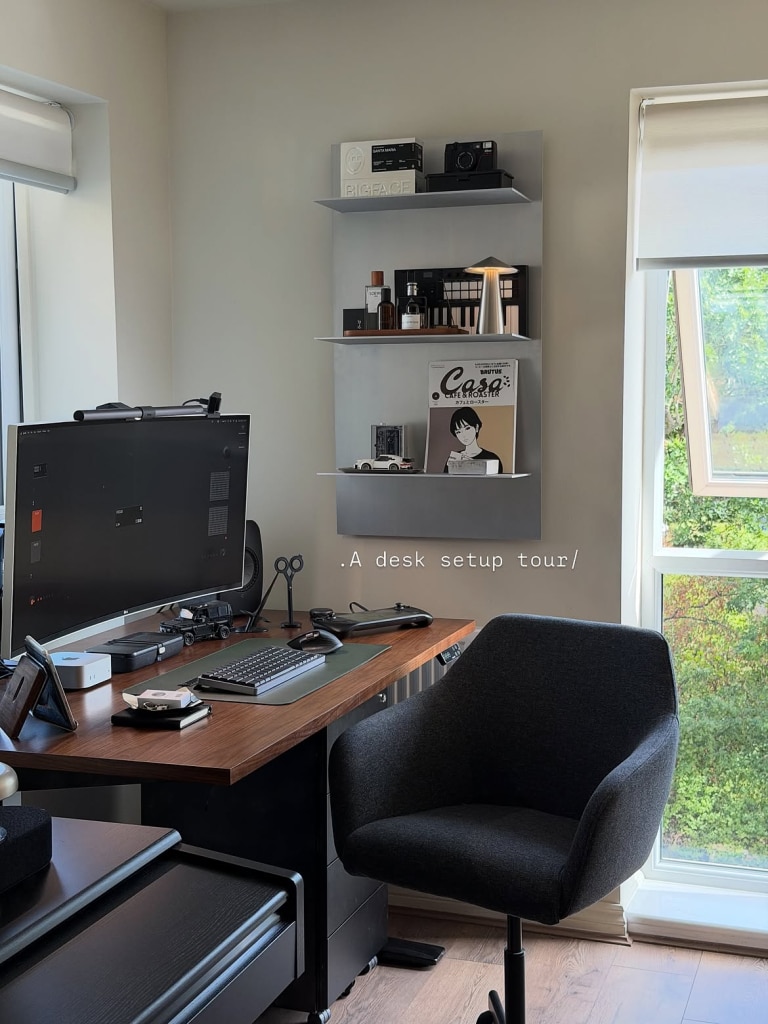
When you type, your forearms and wrists should be neutral: level with the floor or sloping slightly down toward your lap. Standard desks stand 28 to 30 inches high, which suits people around 5 feet 10 inches or taller. For shorter people, including the average adult, that height makes it hard to keep the arms level.
You have a few ways to fix this. Mount a keyboard tray under the desk to lower the keyboard, or raise your chair so your wrists sit above the keys. If you raise the chair, your feet must still rest flat on the floor. When they can’t, add a footrest to support your legs and feet.
Getting everything right is tricky because so many variables interact. Cornell’s Ergonomics Web notes that no single setup of desk, chair, and monitor height is ideal for all five main office tasks: typing, using a mouse, writing, reading documents, and viewing a screen. An adjustable-height standing desk gives the best fit. It changes in half-inch steps and lets you switch between sitting and standing throughout the day. The Uplift V2 Standing Desk is the most customizable model we’ve tested, and it suits people from about 5 feet 4 inches to 7 feet tall.
3. An External Ergonomic Keyboard
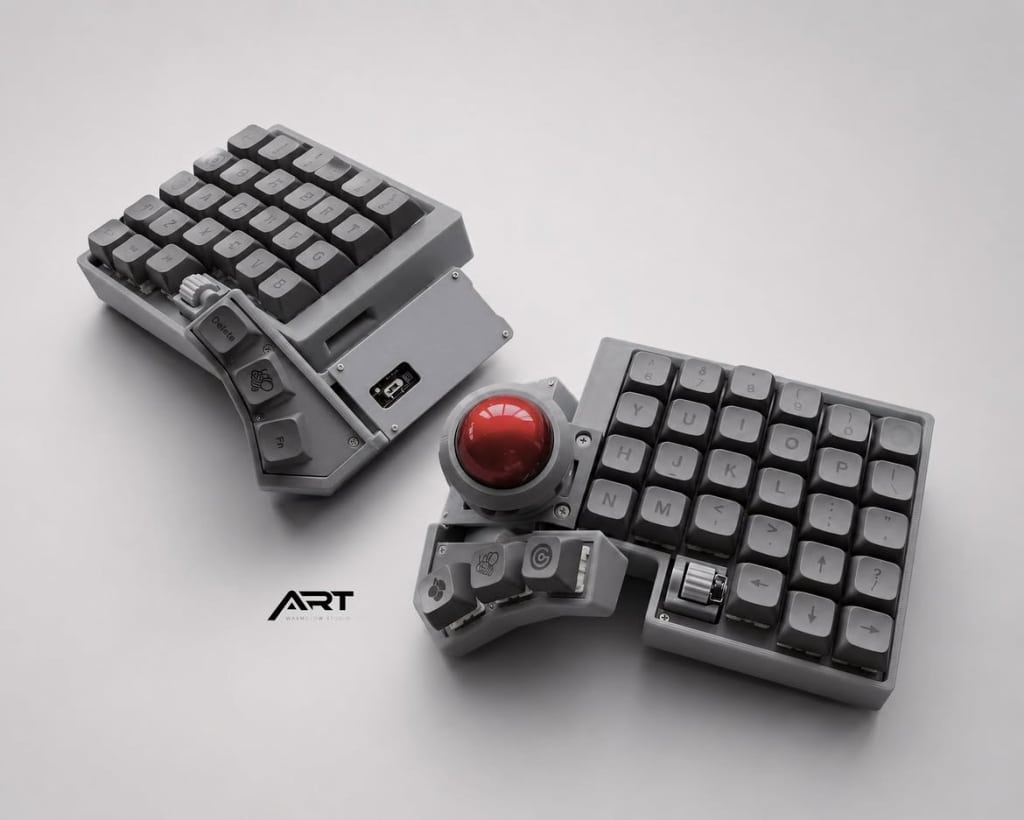
Try this exercise. Hold your hands over the keyboard as if about to type, then move them apart to shoulder width at your sides. That position feels freer and eases the load on your shoulders. Most keyboards instead push your hands together and leave your shoulders hunched.
A fully split keyboard, such as the Kinesis Freestyle Edge RGB, solves this. You can space the two halves so your hands sit shoulder-width apart and your shoulders stay relaxed. It also meets our other ergonomic criteria: a flat slope, a tenting option, no number pad, and programmable keys.
Split keyboards take real time to learn. A partly split model, such as the Microsoft Sculpt Ergonomic Keyboard, is an easier step. At minimum, choose a keyboard without a number pad, like our favorite mechanical option, the Varmilo VA87M. These tenkeyless designs keep the mouse nearer to you, so your arm reaches out less often.
Look, too, for a low, flat profile or a forward tilt, with the space-bar row higher than the top row, to keep wrists neutral. Peter Keir, a kinesiology professor at McMaster University, advises against using the flip-up feet near the edge of the keyboard. He says they extend the wrist, and most people already have some extension.
4. A Mouse That Fits Your Hand
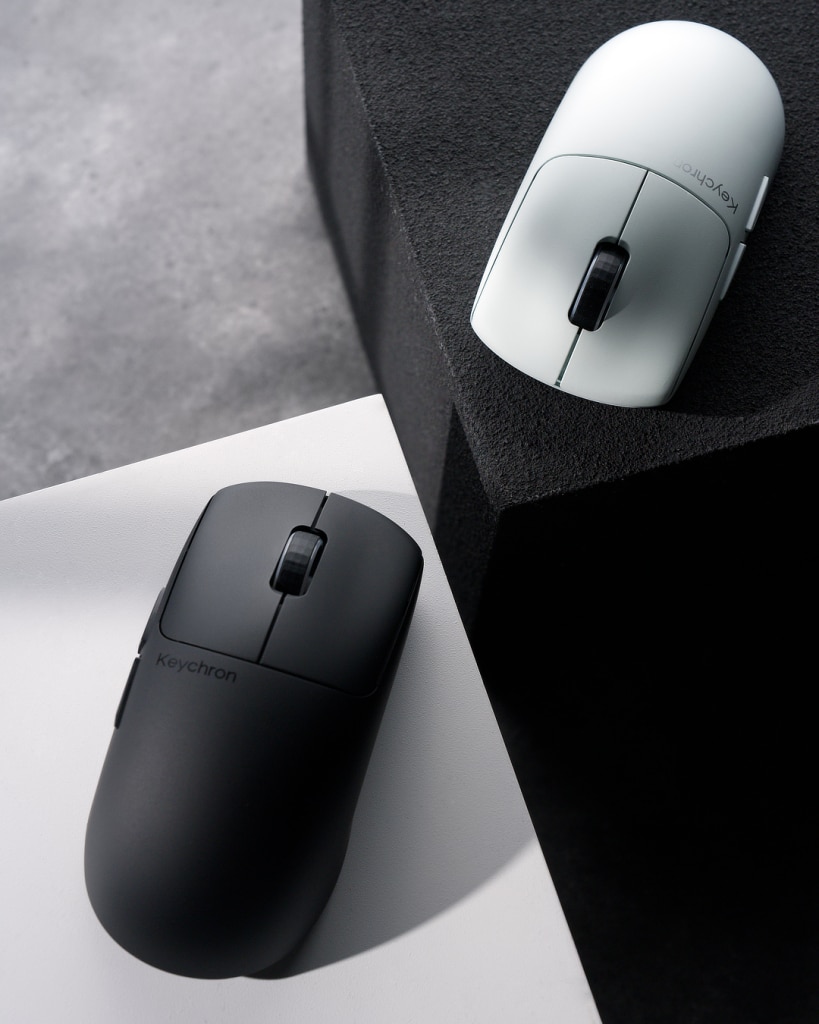
Repetitive touchpad or mouse movements can tire the muscles in your fingers and wrists much as constant typing does. Most people should choose a mouse that feels comfortable to grip and glides smoothly. The Logitech M720 Triathlon Multi-Device Wireless Mouse is our top wireless pick for a range of hand sizes and grip styles. It has six programmable buttons and long battery life.
If a mouse leaves your wrists sore or tired, try a different input device that cuts down on fine wrist motion. A stylus with a graphics tablet or a trackball works well. Either one keeps your hand neutral and helps if you have shoulder or wrist strain.
5. A Display at the Right Height and Distance
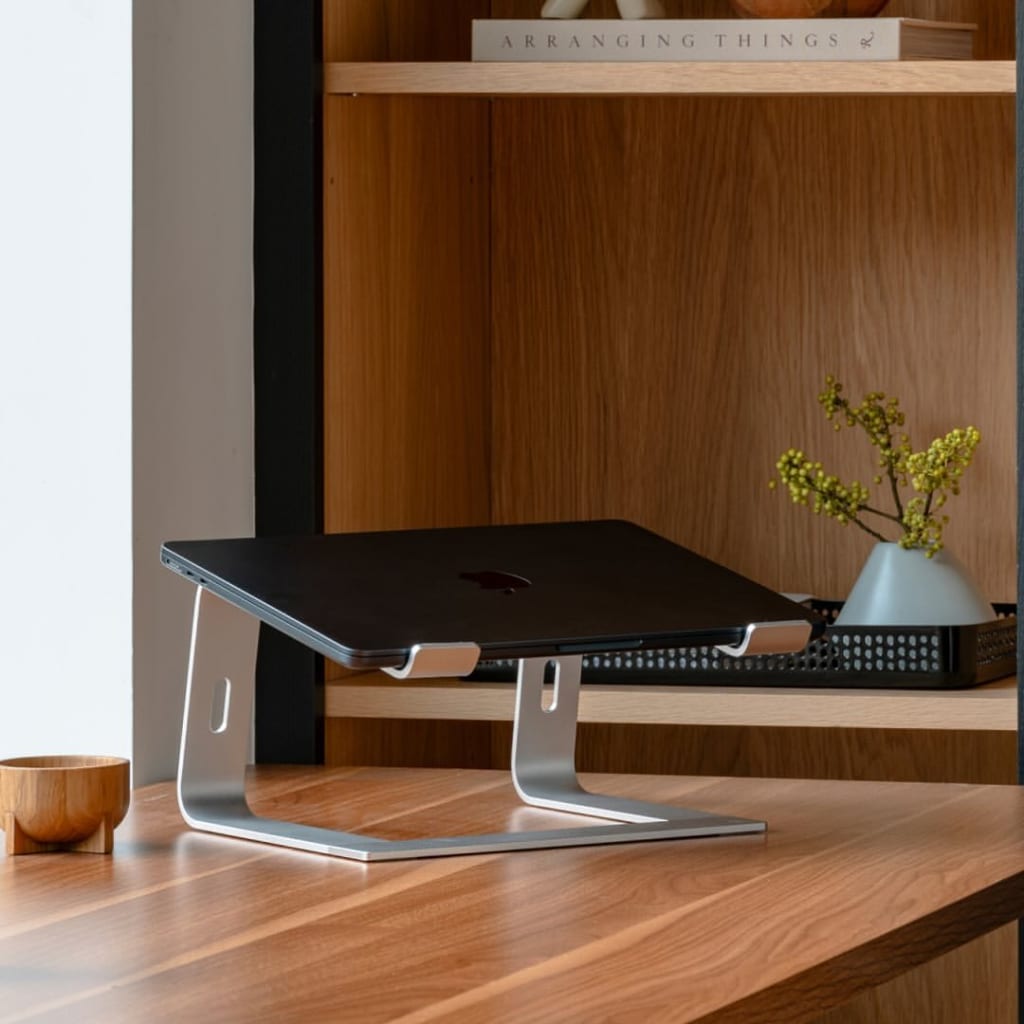
To protect your eyes, make sure you can read your screen clearly without craning or bending your neck. Set the display about an arm’s length away, with your eyes level with the top of the screen or an inch or two below it.
You can raise a laptop or monitor with any flat, wide object, such as a stack of books. For better stability and finer control, use a laptop stand like the Rain Design iLevel 2 or a monitor arm like the Herman Miller Jarvis Single Monitor Arm. Both adjust easily. The iLevel 2 is made of anodized aluminum, so it is sturdy and stylish, and it was the easiest stand to adjust of all we tested.
6. Good Lighting
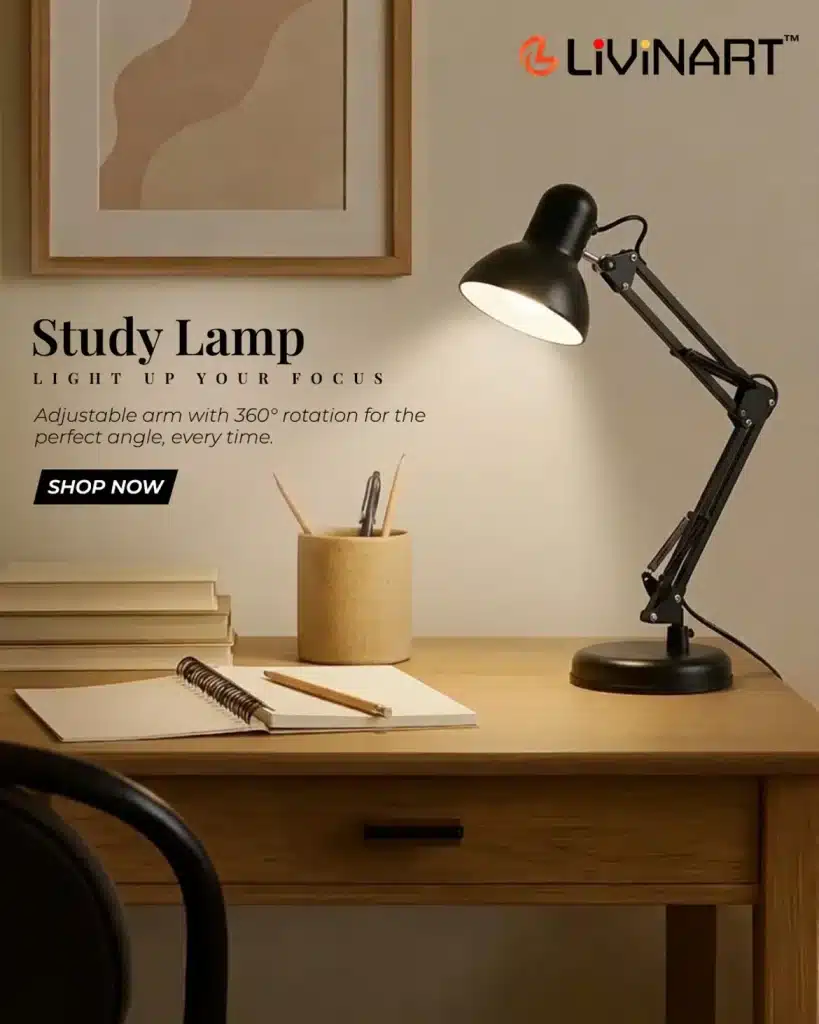
Ergonomics experts recommend strong lighting to reduce eye strain and stop you from craning your neck at awkward angles. Plenty of natural light is ideal. It can lift your energy and sense of well-being while easing eye strain, and daylight and outdoor views give your eyes a chance to rest from the monitor.
If your office has no windows, or you work late or on gray days, combine overhead lighting with task lighting for a balance that helps you focus. The IKEA Forså is our pick for an affordable, timeless lamp. It takes standard LED bulbs and is flexible enough to aim light exactly where you need it.
7. Anything That Helps You Relax
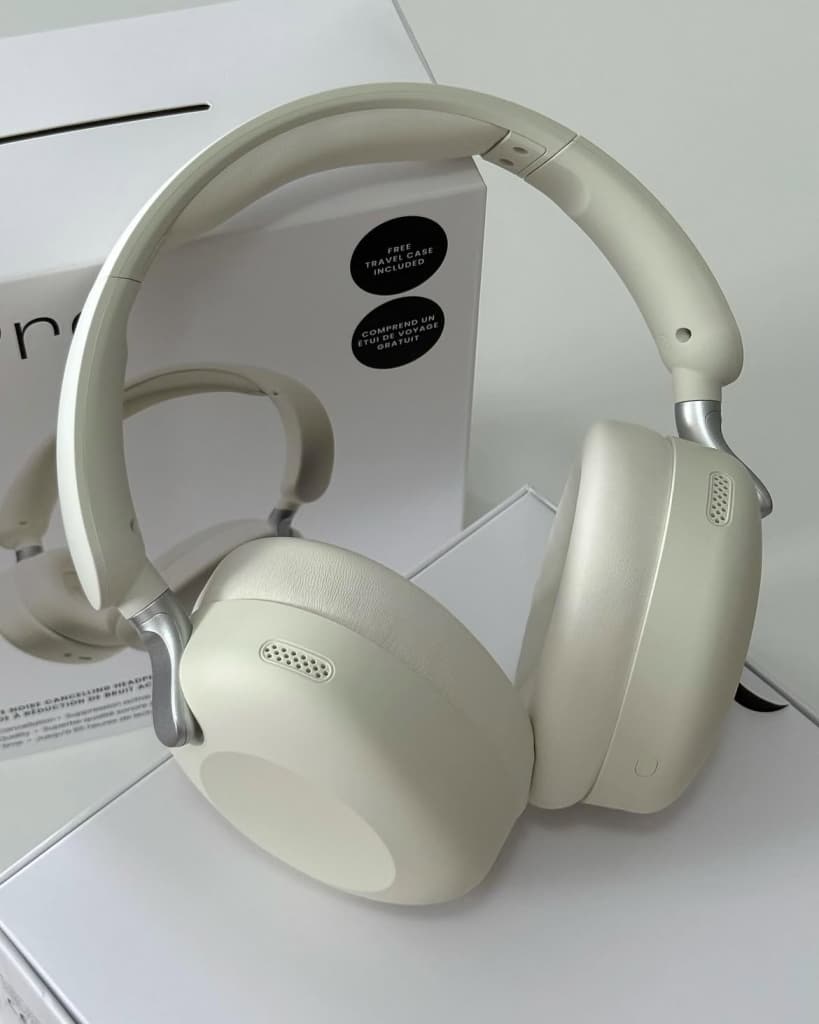

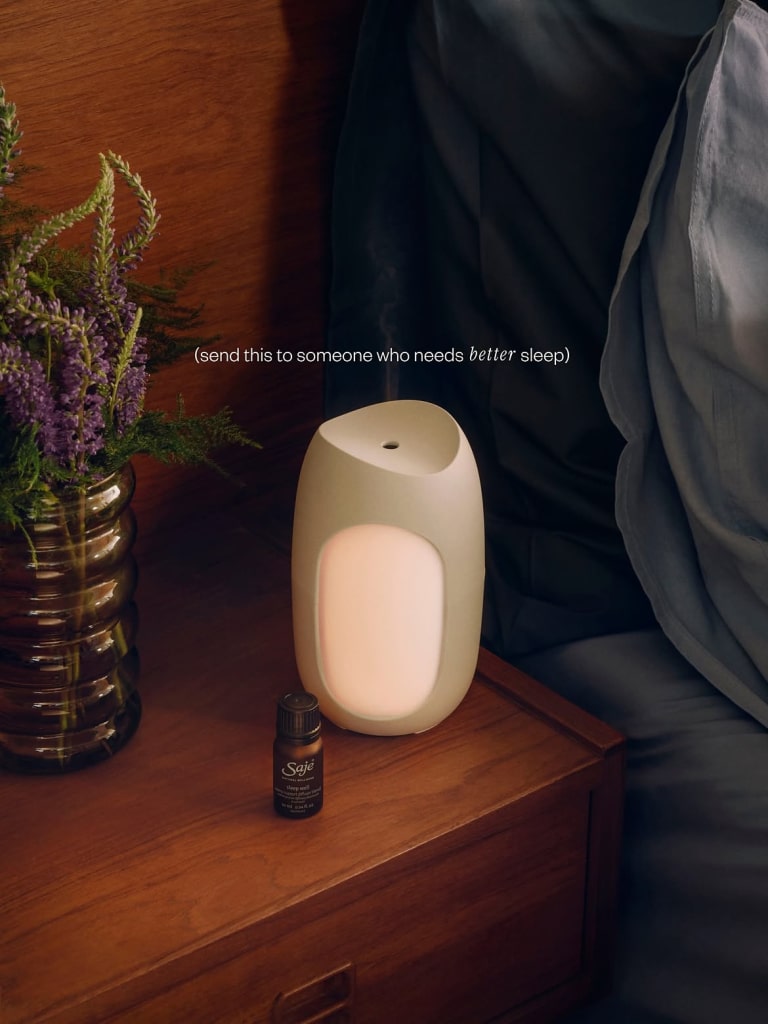
Stress and anxiety tighten your muscles, which makes work harder and can create more stress. Add items to your space that help you unwind. Good options include:
- Noise-cancelling headphones to block out irritating sounds
- A houseplant to bring a bit of nature to your desk
- An essential oil diffuser to add a scent that calms or energizes you
Final Thoughts
Experiment with your setup. Raise or lower the monitor, adjust the chair, and alternate between sitting and standing. Then notice how your body feels after 30 minutes or more, and keep fine-tuning until the workspace feels just right. Which change will you try first? Leave a comment and tell us.



No Comments